Handing out a paper business card and watching the recipient retype your details into their phone is, in 2026, slightly absurd. A vCard QR code skips the entire ritual: the recipient scans the code with their camera, the phone offers to add you to its contacts, and they tap once to save. This guide walks through what a vCard actually is, which fields are worth including (and which to skip), and how to generate one that works reliably across iOS and Android.
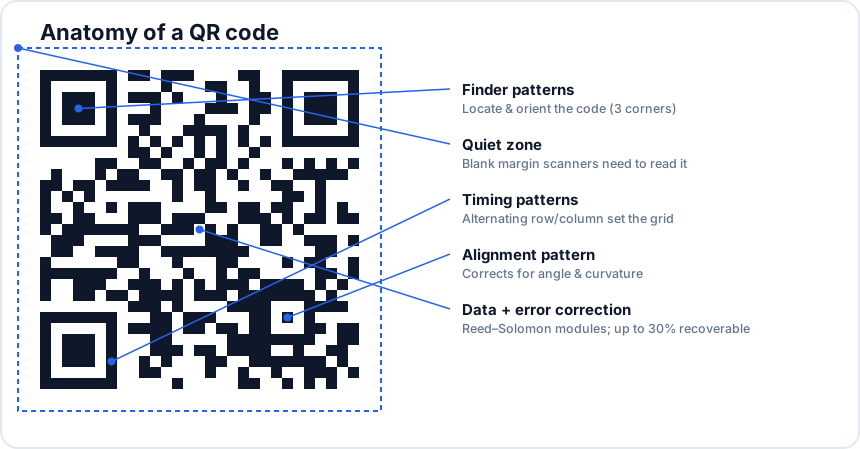
What is a vCard?
vCard (file extension .vcf) is an open file format for contact information, standardised in the early 1990s and still maintained by the IETF. Every modern phone's contacts app understands it. A vCard file is plain text, structured as a sequence of labelled fields:
BEGIN:VCARD
VERSION:3.0
FN:Marco Vilar
ORG:DigitalCodexStudio
TEL;TYPE=CELL:+351912345678
EMAIL:marco@example.com
URL:https://qr-studio.com
END:VCARD
When a vCard string is encoded into a QR code and scanned, the receiving phone recognises the BEGIN:VCARD opener and offers to import the contact. The user gets a confirmation screen showing every field, and one tap saves it to their address book.
Why use a vCard QR instead of a regular contact link?
There are three alternatives to vCard QR codes, and each has a real downside:
- A URL to your "contact" page. Works, but requires two taps (open page, then save), and the page can disappear or get rebranded.
- A digital business card service (Linq, HiHello, etc.). Adds a third–party dependency, often a recurring fee, and routes every scan through an analytics layer.
- Apple's NameDrop or Android's Quick Share. Slick, but only between two same–ecosystem phones held centimetres apart — useless when one of you is on iOS and the other is on Android, or when you are handing out the code on a printed card.
A vCard QR code works on every modern phone, with no service in between, no fee, and no internet connection required to scan. The contact is added the moment the user confirms; no website fetch, no account, no tracking. That makes it the most durable, lowest–friction format for sharing contact details to a stranger's phone.
Which fields to include
vCard supports dozens of fields — postal addresses, birthdays, photos, multiple alternative names, alternative phone numbers tagged HOME / WORK / FAX, custom fields. In practice, only a handful are useful, and overloading the card creates two problems: the QR code becomes unnecessarily dense (slower to scan, harder to print small), and the import dialog the recipient sees becomes an intimidating wall of text.
A good vCard QR code includes:
- Full name (FN) — the only truly required field.
- Organisation (ORG) — your company or studio name.
- Title (TITLE) — your role, if it adds context.
- One phone number (TEL), tagged CELL, with international format (+countrycode...).
- One email (EMAIL).
- One URL (URL) — your portfolio, LinkedIn, or company site.
Skip fields users do not need to know on first contact: postal address (unless you are a physical–location business), birthday, fax number, multiple emails. They can always add more details later if they choose.
Two formats: vCard 3.0 vs MeCard
There are two contact–sharing formats commonly encoded into QR codes: vCard (industry standard) and MeCard (a compact alternative invented by NTT DoCoMo in Japan). MeCard predates iPhone's vCard support and was popular on early Japanese feature phones. It encodes roughly the same information in fewer characters:
MECARD:N:Vilar,Marco;ORG:DigitalCodexStudio;TEL:+351912345678;EMAIL:marco@example.com;URL:https://qr-studio.com;;Modern iPhones and most Android devices recognise both formats, but vCard 3.0 is the safer default for international audiences and is fully supported in iOS Camera, Google Camera, and the major third–party scanner apps. Stick to vCard 3.0 unless you specifically need the smaller code size of MeCard for a tiny printed format.
Generating a vCard QR with QRStudio
QRStudio currently supports URL, text, email, phone, SMS, and Wi‑Fi types directly. To create a vCard QR with QRStudio today, the trick is to encode the full vCard string in the Text input. Here is the recipe:
- Open QRStudio and select the Text tab.
- Paste the following template into the input, replacing the placeholders with your real details:
BEGIN:VCARD VERSION:3.0 FN:Your Name ORG:Your Company TITLE:Your Role TEL;TYPE=CELL:+1234567890 EMAIL:you@example.com URL:https://yourdomain.com END:VCARD - Set Error correction to M for a card–sized print or Q if you plan to add a logo overlay.
- Set the foreground to a high–contrast dark colour (black or near–black) on a white background.
- Download as SVG for print or PNG for digital sharing.
- Test by scanning the resulting code with at least two phones — an iPhone and an Android — and confirm both offer to add the contact correctly.
If you are publishing the QR code on a website rather than printing it, the same string works: phones scan QR codes from screens just as well as from paper.
Common mistakes to avoid
Phone numbers without country code. A number written as 0912 345 678 is meaningless to anyone whose phone is not set to your country's default. Always include the international prefix (+351 for Portugal, +1 for the US, etc.) and write the number with no spaces or formatting characters.
Special characters in fields. If a value contains a comma, semicolon, backslash, or newline, the vCard parser may treat it as a field delimiter and produce a garbled import. Avoid these characters or escape them with a backslash.
Encoding too much data. The longer your vCard string, the denser and larger the resulting QR code. If you find the code is bumping up to a high version (40×40 modules or more) and becoming hard to print at small sizes, trim the optional fields until it fits comfortably at the print size you need.
Not testing before printing. Always import the resulting card on at least two devices before printing in volume. A small typo in the vCard syntax (a missing colon, a stray space) will produce a code that scans but imports an empty or partially–broken contact.
A vCard QR code is one of the highest–return uses of a QR code: tiny effort to make, dramatic friction reduction for the recipient, and durable for the lifetime of your contact details. Build one once, put it on the back of every business card and email signature image you produce, and you will never watch someone retype your phone number again.