Look at any QR code generator and you will see a setting called error correction, with four levels labelled L, M, Q, and H. The labels are cryptic, the documentation is usually one sentence long, and most people leave the default and hope for the best. This guide opens the box. By the end you will know what error correction actually does, why a QR code can survive being half–covered by a logo or smeared with coffee, and which level to pick for the printed material in front of you.
What error correction does
A QR code does not just store your data. It stores your data plus a calculated set of redundant bits derived from the data, using a scheme called Reed–Solomon error correction. The same algorithm protects CDs, DVDs, deep–space probe transmissions, and the messages your phone exchanges with cell towers. Reed–Solomon is decades old, mathematically robust, and well–suited to the kind of damage a real–world printed code suffers: smears, missing pieces, and overlays.
The clever part is that the redundancy is woven through the entire code, not concentrated in one place. As long as some sufficient fraction of the modules survives, the scanner can mathematically reconstruct the original data — even if the surviving modules are scattered randomly across the grid.
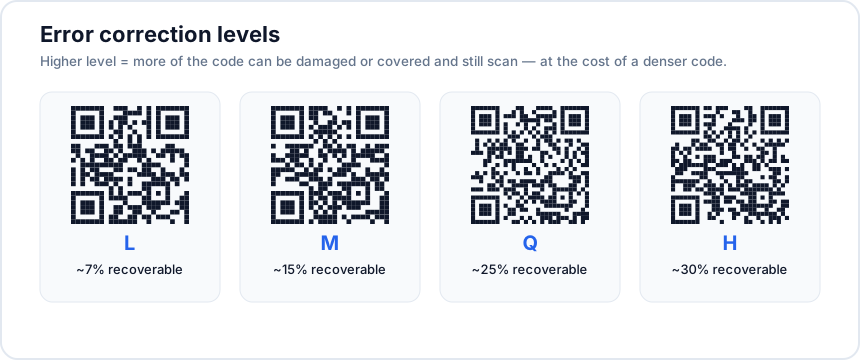
The four error correction levels, in increasing order of resilience, are:
- L (Low) — recovers about 7% of damaged data.
- M (Medium) — recovers about 15%.
- Q (Quartile) — recovers about 25%.
- H (High) — recovers about 30%.
In other words, an H–level code can lose up to roughly 30% of its modules and still scan correctly. That is the property that makes branded QR codes — codes with a logo overlaid on the centre — possible at all.
The trade–off: more resilience means a bigger code
Error correction is not free. The redundant bits take up space — and because a QR code can only hold a fixed number of modules per version, raising the error correction level forces the generator to step up to the next QR–code version, which means more modules, smaller individual modules at the same printed size, and a denser–looking code.
A concrete example: a 50–character URL fits comfortably in a Version 3 QR code at error correction level L. The same URL at level H bumps the code up to Version 5 or 6, increasing the side from 29×29 modules to 41×41. At a fixed 3 cm printed width, each individual module shrinks accordingly — and smaller modules are harder for budget phone cameras to resolve at typical scanning distances.
So the practical limit on error correction is print resolution and scanning distance, not the algorithm itself. Choosing H when L would do means a bigger, denser, or harder–to–scan code, even though both versions encode the same data.
When to use each level
L (Low) — rarely the right choice
L gives you the smallest, simplest code for a given amount of data, but it tolerates almost no damage. It only really makes sense for codes that will be displayed exclusively on a screen, where the surface is perfectly clean and contrast is absolute. For anything printed, anything outdoors, anything that might end up on a window or a textured surface, L is too risky. Most generators rightly default to M or higher.
M (Medium) — the safe default
M is the default in QRStudio and in most other generators for good reason: it strikes the best balance between resilience and code size for typical printed material. Use M for plain QR codes printed on flyers, business cards, posters, packaging, and similar surfaces. If you do not have a logo overlay and the printing surface is normal paper or smooth plastic, M is enough.
Q (Quartile) — rough environments and small overlays
Q is the right choice when the code will be exposed to physical wear — outdoor signage, construction–site asset tags, restaurant–table wear, vehicle stickers — or when you are adding a small (10–15% of code area) logo. Q tolerates enough damage to keep working through fading, dirt, partial scratches, or small overlays, without inflating the code size as aggressively as H.
H (High) — logos and harsh conditions
H is the right choice for two specific situations: when you are placing a noticeable logo (up to ~25–30% of the code's area) in the centre of the code, or when the code will be subject to severe physical damage (industrial environments, weather–exposed labels, fabric prints). H is the only level that can tolerate a large overlay — trying the same overlay at L or M will produce a code that fails to scan even from a clean print, because the overlay alone destroys more data than the lower levels can recover.
A common misconception
It is tempting to assume that "higher is always better" — if H tolerates more damage, why not always use H? The answer is that the resilience comes at the cost of scanability under normal conditions. A bigger, denser code at the same printed size is harder to scan reliably from far away, in low light, with a cheap camera, or at an angle.
If you do not need the extra protection — no logo, smooth surface, indoor light — H actively hurts you. The right way to think about error correction is "how much insurance do I need?": enough to handle the realistic damage your code will face, but no more. Buying earthquake insurance for a beach house in a flood zone is the wrong product, even though the premium is "more coverage".
In practice, that mental model maps cleanly to the four levels: L for screen–only codes (rarely useful), M for clean printed material with no overlay (the default for most use cases), Q for moderate wear or small overlays, and H for big logos or severe environments.
How to test the level you picked
Whatever level you choose, validate it before printing in volume. The simplest test:
- Print one copy of the QR code at the exact final size you intend to use.
- Scan it with at least three different phones — preferably one iPhone, one mid–range Android, and one older device.
- Scan from the realistic scanning distance for that placement (not nose–to–the–paper).
- If you are using a logo, deliberately partly cover the code with your finger and confirm it still scans — this simulates real–world wear.
If any of those tests fails, raise the level by one step or increase the print size, then test again. The cost of a few extra minutes here is much lower than the cost of a print run that customers cannot scan. QRStudio exposes all four levels in the Style panel of the generator — switch between them and watch the preview update in real time, then export the version that fits your situation.