Almost every "the QR code does not scan" problem turns out to be one of the same seven issues. The trick is to walk through them in order, because the cheapest fixes (contrast, size, surface) catch the vast majority of real–world failures before you even start questioning the code generator. This guide takes you through the seven, with what to look for and how to fix each one.
Before you start: confirm the failure
Sometimes "it does not scan" turns out to be "it scans but the destination is broken". Before troubleshooting the code, copy the URL or content out of the generator and open it directly in a browser or app. If the destination itself is broken, no amount of error correction will fix it.
Once you have confirmed the destination works, scan the on–screen preview of the QR code with your phone (most generators, including QRStudio, render a live preview as you type). If the on–screen version scans, the data is fine and the failure is happening somewhere between the generator and the user's camera. That is what the rest of this checklist diagnoses.
1. Contrast is too low
By far the most common cause. QR–code scanners look for sharp transitions between dark and light modules. If you have customised your code with a light–grey foreground on a white background, or a brand colour on a similarly–valued background, the scanner cannot reliably tell the modules apart.
The rule of thumb: aim for a foreground–to–background luminance ratio of at least 4:1, and prefer a dark foreground on a light background rather than the other way around. Some scanners refuse to read inverted (light–on–dark) codes at all, even though the QR specification technically allows them.
Fix: in your generator, switch the foreground to pure black (or near–black) and the background to pure white. Re–export and test. If you must use a brand colour, pick one with high luminance contrast against the background — navy, deep red, or dark green tend to work; pastels and mid–tones do not.
2. The printed code is too small
A useful rule of thumb is the 10:1 distance ratio: the printed QR code should be at least 1/10th of the expected scanning distance. If users will scan from 30 cm (a flyer in their hand), the code needs to be at least 3 cm square. From 1 m, you need 10 cm. From 3 m (a poster across the room), you need 30 cm. Codes printed at 1.5 or 2 cm fail constantly even though they look "fine" on the design preview.
Fix: measure the realistic scanning distance for your placement and apply the 10:1 rule. If you cannot make the code physically larger, reduce the amount of data you are encoding (a shorter URL produces a less–dense code, which is easier to scan at small sizes), or accept that you need to choose a different placement.
3. Print resolution is too low
A QR code with blurry edges is much harder to scan than one with crisp ones. If you exported a small PNG and let your design tool scale it up to fit a banner, you will see fuzzy modules and mushy corners. The scanner is forced to guess at the boundaries between modules — and often guesses wrong.
For print, you want the QR code image to be at least 300 DPI at the final printed size. A 3 cm code printed at 300 DPI needs at least 354×354 pixels. Larger is fine; smaller produces blur.
Fix: export your code as SVG whenever the destination is print. SVG is a vector format and stays crisp at any size. If your printer or workflow requires raster (PNG/JPG), export at the largest size your generator allows — QRStudio goes up to 2048 px square — and let the printer scale down.
4. Logo overlay exceeds the error correction budget
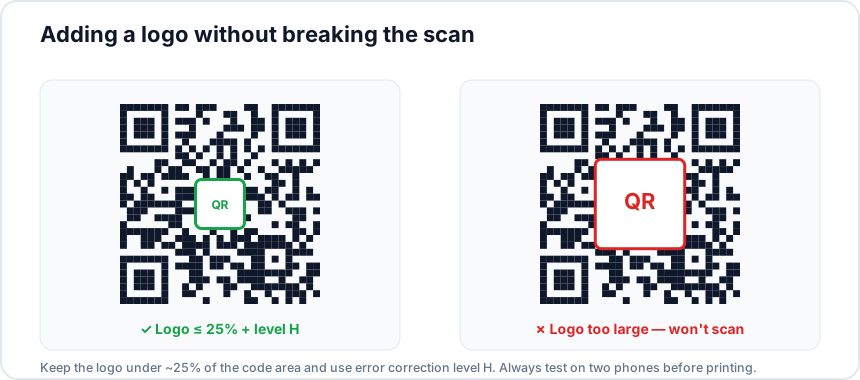
If you added a logo to the centre of your code, you have effectively covered some modules with the logo image. That is fine — up to a point. The point is set by the error correction level: 7% for L, 15% for M, 25% for Q, 30% for H. Cover more than that, and there is not enough redundant data left to reconstruct the original.
In practice, this is the second–most–common cause of failed scans, after contrast. People generate a code at the default M level, then overlay a 25% logo, and wonder why it fails on some phones.
Fix: raise the error correction level to H, which can tolerate a logo up to roughly 25–30% of the code area, and shrink the logo if it is more than that. As a rule of thumb, a logo that occupies more than the area of the central finder pattern is too large.
5. Surface or environment is hostile
A code that scans perfectly on flat white paper can fail when printed on a curved surface, a glossy laminate that reflects ceiling lights into the camera, a textured stock that breaks up the modules, or a dark–menu cover where the surrounding context lowers contrast.
Curved surfaces are particularly tricky: a QR code wrapped around a coffee cup or a curved sticker on a bottle distorts the geometry of the code, and scanners that expect a flat grid struggle to decode it. Test on a real curved surface, not a flat mock–up.
Fix: for glossy or reflective surfaces, raise the error correction to Q or H and add a "quiet zone" (extra white margin) of at least four modules around the code. For curved surfaces, keep the code on the flattest part possible and increase the size. For dark backgrounds, do not invert — print a white panel containing a normal black–on–white code.
6. Scanner–side quirks
Modern iPhones and Android devices recognise QR codes in the default camera app, but older Android phones may not, and some users still have third–party scanner apps installed that have their own bugs. If your code works on your iPhone but not your colleague's old Android, the issue is likely the scanner, not the code.
Fix: there is not much you can do about ageing scanner apps, but you can make your code maximally compatible. Stay with standard black–on–white, default square corners (rounded–corner styling is decorative and can confuse older scanners), no inverted colours, and a generous quiet zone.
7. Encoded data is too long or malformed
Every QR code has a maximum capacity that depends on the version and error correction level. If you are encoding a very long URL, a multi–line vCard, or a Wi‑Fi credential with special characters that have not been escaped, the generator may either silently truncate, refuse to encode, or produce a code that is technically valid but pushes the version so high that the code becomes unreadably dense at print size.
Fix: use a URL shortener for long URLs. For Wi‑Fi codes, double–check that the password does not contain characters that need escaping (semicolons, commas, backslashes); QRStudio handles this for you, but copy–pasting raw QR strings from elsewhere often does not. For vCards, keep the entry short — name, one phone, one email, one URL — and skip optional fields you do not need.
A 30–second pre–print checklist
Before you commit to a print run of more than a few copies, run through this list:
- Foreground is dark, background is light, contrast looks high.
- Printed size respects the 10:1 rule for the realistic scanning distance.
- Exported as SVG, or as PNG at the largest size the generator allows.
- If a logo is in the centre, error correction is set to H and the logo covers no more than ~25% of the code area.
- Quiet–zone margin (the white border) is at least 4 modules wide.
- Tested by scanning the printed code with two different phones from realistic distance.
If all six pass, you are ready to print. If any fail, the failure tells you exactly which of the seven issues to fix, and a single re–export usually solves the problem before any paper is wasted.