How to Add a Logo to Your QR Code
A plain black-and-white QR code gets the job done, but a QR code with your logo turns a functional square into a branded touchpoint. Whether you are printing codes on packaging, business cards, or event signage, adding a logo tells people who the code belongs to before they even scan it. In this guide, you will learn exactly how to embed a logo in a QR code while keeping it 100% scannable.
Why Branded QR Codes Matter
Studies consistently show that people are more likely to scan a QR code when they recognize the brand behind it. A logo in the center of the code provides instant visual trust. It signals legitimacy, reduces hesitation, and reinforces your brand identity in every place the code appears. Think of it as a tiny billboard embedded right inside the code itself.
Beyond trust, branded QR codes simply look more professional. They stand out on printed materials and digital screens alike. If you are investing in marketing collateral, there is no reason to leave your QR codes unbranded when tools like QRStudio make it effortless.
How Error Correction Makes Logos Possible
QR codes have a built-in safety net called error correction. The QR specification defines four levels: L (7%), M (15%), Q (25%), and H (30%). These percentages represent how much of the code's data can be damaged or obscured while still allowing a successful scan.
When you place a logo in the center of a QR code, you are effectively covering up a portion of the data modules. Error correction level H can tolerate up to 30% obstruction, which is what makes logo overlays feasible. Without this redundancy, covering any modules would break the code entirely.
The 25% Maximum Logo Size Rule
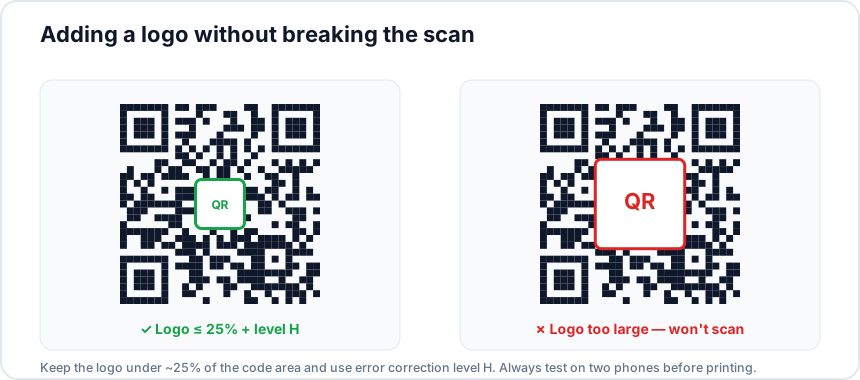
Even with the highest error correction level, you should keep your logo to a maximum of 25% of the total QR code area. Going beyond that pushes you dangerously close to the 30% threshold, leaving almost no room for any additional damage from printing imperfections, dirt, or wear. A safe target is 20 to 25% of the code's surface area, centered in the middle where the three finder patterns are not present.
If your logo is too large, scanners will fail, especially older devices or cameras in low-light conditions. Always test your code after adding a logo, and give yourself a safety margin.
Step-by-Step: Adding a Logo with QRStudio
Adding a logo in QRStudio takes just a few clicks:
- Enter your content — type or paste your URL, text, Wi-Fi credentials, or any other data type.
- Upload your logo — click the logo upload area and select your image file. QRStudio accepts PNG, SVG, and JPG formats.
- Automatic error correction bump — QRStudio automatically switches your code to error correction level H when a logo is detected, ensuring maximum resilience.
- White padding ring — a clean white quiet zone is added around your logo so it does not bleed into surrounding modules. This improves both aesthetics and scannability.
- Preview and download — scan the live preview with your phone to verify, then download in your preferred format.
Choosing the Right Logo Format
SVG is the best choice. Vector logos scale perfectly at any size and keep file sizes tiny. If your QR code will be printed on anything from a business card to a billboard, SVG ensures crisp edges at every dimension.
PNG works well too, especially if your logo has a transparent background. Aim for a resolution of at least 200 x 200 pixels so the logo stays sharp when the QR code is rendered at larger sizes.
Avoid JPG for logos if possible. JPG does not support transparency, so you will end up with a white rectangle behind your logo instead of a clean overlay. Compression artifacts can also make fine details look blurry.
Design Tips for Logo QR Codes
- Keep the logo simple. Intricate details get lost at small sizes. A clean icon or logomark works much better than a full wordmark.
- Ensure high contrast. Your logo needs to be clearly distinguishable from the surrounding dark modules. A logo with strong contrast against the white center padding will look best.
- Use a transparent or white background. This lets the logo sit naturally within the code rather than creating a jarring colored block.
- Test scannability every time. After generating your code, scan it with at least two different phones. Try scanning from different distances and angles, and in both bright and dim lighting.
- Do not cover the finder patterns. The three large squares in the corners of every QR code are critical for alignment. Your logo should stay centered and away from these areas.
Common Mistakes to Avoid
The most frequent mistake is making the logo too large. When people see their brand appear in the center, the temptation is to scale it up. Resist that urge and stick to the 25% rule. The second most common issue is using a low-resolution PNG that looks pixelated once the QR code is scaled for print.
Another pitfall is forgetting to increase error correction. If you manually set error correction to L or M and then overlay a logo, scanners will fail. QRStudio handles this automatically, but if you are using another tool, make sure error correction is set to H before adding any overlay.
Finally, avoid using colorful or highly detailed backgrounds behind your logo. The QR code's data modules need to remain high-contrast for reliable scanning. Anything that reduces contrast between the dark modules and the light background will hurt scan rates.
Ready to brand your QR codes?
Create a custom QR code with your logo in seconds. No sign-up required.
Try QRStudio Free