The best practices for printing a QR code come down to five variables: minimum size, resolution (DPI), file format, error correction level, and contrast against the surface. Get them all right and the code scans first try, every time. Get any one wrong and the code looks fine on screen but fails in the real world. This guide walks through each variable in order, with concrete numbers for business cards, packaging, flyers, and posters. You can generate print-ready QR codes for free with QRStudio.
Minimum Size: How Small Is Too Small?
The absolute minimum size for a printed QR code is 2 cm x 2 cm (0.8 x 0.8 inches). At this size, most modern smartphone cameras can read the code from a distance of about 10 cm (4 inches). However, minimum does not mean ideal.
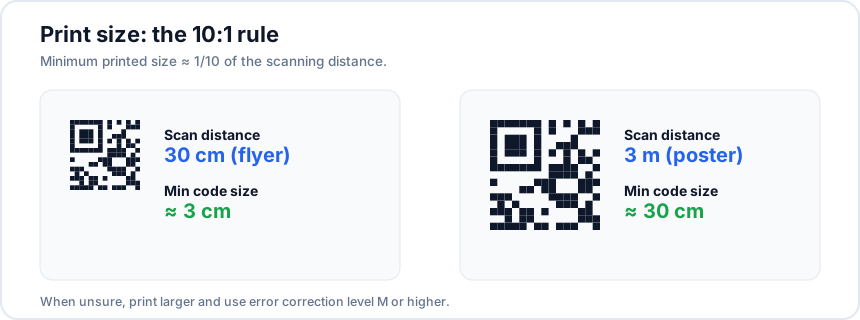
A good rule of thumb is to consider the scanning distance. The QR code should be roughly one-tenth the distance from which it will be scanned. If someone will scan from 1 meter away, the code should be at least 10 cm across. For a poster meant to be read from 3 meters, aim for 30 cm.
Keep in mind that more data in the code means more modules (the small squares), which means each module becomes smaller at any given print size. A simple URL produces a less dense code than a full Wi-Fi credential string, so it can be printed smaller while remaining scannable.
Resolution and DPI
For print, your QR code image should be at least 300 DPI at the final printed size. A low-resolution QR code will have blurry edges on the modules, making it harder for cameras to distinguish between light and dark areas.
If you export a PNG from QRStudio, make sure the pixel dimensions are large enough. For example, a 3 cm code at 300 DPI needs at least 354 x 354 pixels. When in doubt, export at a higher resolution than you think you need — you can always scale down without losing quality, but scaling up introduces blur.
Choose the Right File Format
This is one of the most impactful decisions for print quality:
- SVG (recommended for print) — Vector format that scales to any size without losing sharpness. Every module edge stays perfectly crisp whether you print at 2 cm or 2 meters. QRStudio supports SVG export for exactly this reason.
- PNG — Raster format that works well at the resolution it was exported. Fine for digital use and small print applications where you have enough pixels, but will blur if scaled beyond its native resolution.
- JPEG — Avoid for QR codes. JPEG compression introduces artifacts around sharp edges, which is exactly where QR code modules need to be clean and precise.
If your print workflow allows it, always use SVG. It eliminates resolution concerns entirely.
Error Correction Levels
QR codes have four error correction levels that determine how much of the code can be damaged or obscured while still scanning:
- L (Low) — Recovers up to 7% damage. Smallest code size.
- M (Medium) — Recovers up to 15% damage. Good default.
- Q (Quartile) — Recovers up to 25% damage. Solid for print.
- H (High) — Recovers up to 30% damage. Best for print materials that may get folded, scratched, or partially covered.
For print, use Q or H. The trade-off is a slightly denser code, but the added resilience is worth it. If you plan to overlay a logo on the code, you must use H to compensate for the modules the logo covers. You can set the error correction level directly in QRStudio's generator.
Color Contrast Requirements
QR scanners rely on contrast between the dark modules and light background. The most reliable combination is black on white. If you want to use brand colors, follow these rules:
- The foreground (modules) must always be darker than the background.
- Never invert the colors (light modules on dark background). Many scanners cannot read inverted codes.
- Aim for a contrast ratio of at least 4:1 between the module color and background color.
- Avoid gradients, patterns, or textures on either the modules or background.
Respect the Quiet Zone
The "quiet zone" is the blank margin around the QR code. The standard requires a minimum of four modules of clear space on all sides. Without this margin, surrounding graphics, text, or page edges can confuse the scanner. Never crop a QR code right to its edge. If your design is tight on space, it is better to make the code slightly smaller than to sacrifice the quiet zone.
Test Before You Print
This step is non-negotiable. Before sending your design to the printer:
- Print a proof at actual size on a regular printer.
- Scan it with at least two different phones (one iPhone, one Android).
- Test in different lighting conditions — bright overhead light, dim room, and natural daylight.
- Verify the code leads to the correct destination.
A $0.10 test print can save you from a $500 batch of unusable flyers.
Common Mistakes to Avoid
- Placing QR codes on curved surfaces without testing — bottles, mugs, and cylinders distort the code.
- Printing on reflective or glossy material — glare from shiny surfaces blocks camera focus. Use matte finishes when possible.
- Overcrowding the code with data — use a short URL instead of a long one to keep the code simple and scannable at smaller sizes.
- Forgetting to update — if the linked URL changes, the printed code becomes useless. Consider using a redirect URL you control.
- Skipping the test print — the most common and most costly mistake of all.
Ready to create a print-optimized QR code? QRStudio lets you export in SVG, choose your error correction level, and customize colors — all for free, right in your browser.