QRStudio is a free QR code generator and resource — create customizable QR codes for URLs, text, email, phone, SMS, or Wi-Fi in seconds, then dig into our in-depth guides on designing, printing, and troubleshooting them. Everything runs entirely in your browser: no sign-up, no server uploads, 100% private.
QR code updates as you type
Colors
#000000
#FFFFFF
Style
Logo
Drag & drop or click to uploadPNG, JPG, or SVG — max 25% of QR size
Size
512px
256px2048px
Preview
Scan to test your QR code
Download
Scannability check
Checking…
Colour contrast
Checking…
Size & print
Checking…
Logo & error correction
Checking…
Quiet zone (margin)
Checking…
Advisory checks — always test a printed code on two different phones before a large print run.
A QR code (short for Quick Response code) is a two-dimensional barcode invented in 1994 by Masahiro Hara at Denso Wave, a Japanese subsidiary of Toyota. It was originally designed to track car parts on assembly lines, but its ability to store far more data than a traditional one-dimensional barcode — and to be read at any rotation — made it a near-universal format for everything from restaurant menus and Wi‑Fi credentials to mobile payments and event tickets.
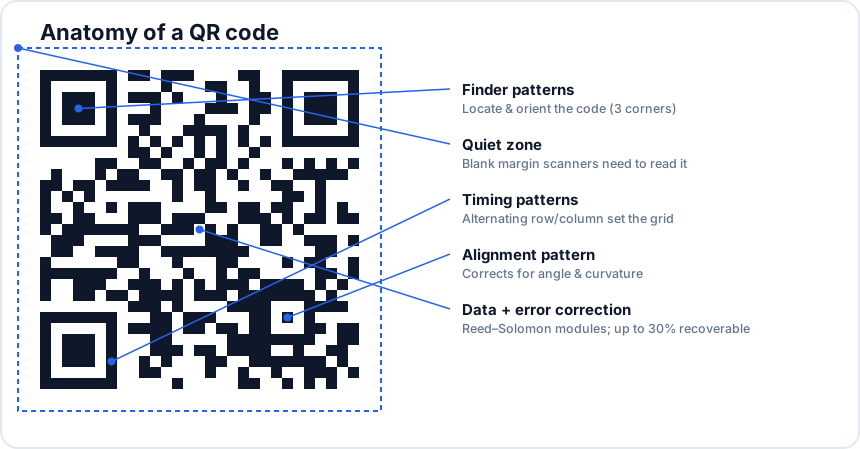
Visually, a QR code is a square grid of black and white squares called modules. Three of the four corners contain large finder patterns — the easily recognisable nested squares — that allow scanners to identify orientation and scale instantly. The remaining modules encode data and error correction bits using the Reed–Solomon algorithm, which means a QR code can still be read accurately even when up to 30% of it is damaged, dirty, or covered by a logo.
A modern QR code can hold up to 4,296 alphanumeric characters or 7,089 numeric digits, which is more than enough for any web URL, structured contact card, payment string, or short message. The exact size of the resulting code (its version, from 1 to 40) depends on how much data you encode and which error correction level you choose. QRStudio handles all of these decisions automatically — you just type your content and the generator picks the smallest, most reliable code that fits.
The anatomy of a QR code.
The six QR code types QRStudio supports
Different scanners and operating systems recognise different data formats inside a QR code. QRStudio formats the payload correctly for each use case so the receiving device knows what to do with the scanned content — open a link, draft an email, dial a number, or join a Wi‑Fi network — without you having to learn the syntax.
URL
The most common type. The QR code stores a plain web address such as https://example.com and the scanner opens it in the default browser. URLs with shorter strings produce simpler, easier–to–scan codes, so consider using a URL shortener if your destination link is long.
Plain text
Encode any short message, instructions, coupon code, serial number, or note up to a few thousand characters. The scanner displays the text and usually offers to copy it to the clipboard. Useful for inventory tags, museum exhibits, classroom worksheets, or anywhere you want offline information without a server round–trip.
Email
Generates a mailto: string with optional pre–filled subject and body. When scanned, the device opens its default email client with the message ready to send. Great for contact cards on flyers, support stickers on physical products, or a "Reach support" code at a help desk.
Phone
Encodes a tel: URI. Scanning prompts the user to call the number directly — no typing or copy–paste. Common on storefront windows, taxi receipts, restaurant tables, and any printed material where a single tap to call is the desired action.
SMS
An sms: URI with a recipient phone number and optional pre–filled message body. Useful for opt–in keywords ("Text JOIN to…"), event RSVPs, contest entries, or quick feedback collection without building a custom form.
Wi‑Fi
A specially–formatted string (WIFI:T:WPA;S:network;P:password;;) that most modern phones recognise. Scanning prompts the device to join the network automatically — no typing the password, no spelling out the SSID. Print this code at hotel reception, on a cafe table, in a classroom, or beside the router at home, and guests connect in seconds. QRStudio supports WPA / WPA2, WEP, and open (no password) networks.
When should you use a QR code?
QR codes work best when you need to bridge the physical world to a digital action. They eliminate typing, reduce friction, and remove the chance of misspelling a URL or copying a phone number incorrectly. The most effective placements share three properties: the user has a phone in hand, scanning saves them effort, and the destination delivers immediate value.
Concrete examples that consistently work well: a restaurant menu QR on each table, a Wi‑Fi credentials card at a hotel front desk, a "Leave a review" code on receipts, a vCard–style contact code on a business card, an event QR that opens the schedule or check–in form, a payment QR for invoicing, an asset tag that links to a maintenance log, and a packaging insert that opens a how–to video. In each case the alternative — typing a URL, dictating a Wi‑Fi password, or copying a phone number — is annoying enough that scanning becomes the obvious choice.
Where QR codes fall short: contexts where the user does not already have a phone open (the inside of a printed book, for example, or a billboard glimpsed at high speed), or destinations that load slowly or require an app install. A QR code is only as useful as the page or action it triggers, so test the full flow on a real device before printing in volume.
How QRStudio works (and why it matters)
Most online QR generators work by sending the content you type — URLs, phone numbers, Wi‑Fi passwords — to a remote server, which renders the image and sends it back. That model is simple to build but has two downsides: the server logs everything you encode, and the resulting QR code may quietly redirect through a tracking domain you have no control over.
QRStudio runs entirely in your browser. The QR generation library executes locally as JavaScript; nothing you type leaves your device. There is no server–side database, no account, no upload, and no analytics on the content of the codes you create. The downloaded PNG, SVG or JPG file is a static image that points only to whatever you typed — no third–party redirector, no tracking pixels embedded.
For most users this is a convenience question; for some — lawyers handling client info, healthcare professionals printing patient leaflets, hosts sharing private Wi‑Fi credentials — it is a privacy and compliance question. QRStudio is built so that the answer is the same in either case: your data stays on your machine.
Frequently asked questions
Are the QR codes I create free to use commercially?
Yes. Every QR code generated by QRStudio is free for personal and commercial use, with no watermark and no licensing fee. You can print them on packaging, embed them in marketing materials, sell products that feature them, or include them in any project. There is no usage limit and no sign–up.
Do QR codes expire?
A static QR code — the kind QRStudio generates — does not expire. The data is encoded directly into the pattern, so as long as the printed image remains legible the code will keep working forever. What can stop working is the destination: if the URL you encoded goes offline, scanning the code will fail. Plan ahead by encoding a URL on a domain you control.
What is the difference between static and dynamic QR codes?
A static QR code encodes the destination directly into the image; once printed, the destination cannot be changed. A dynamic QR code encodes a short redirect URL controlled by a third–party service, which can be re–pointed at any time and which logs each scan. QRStudio generates static codes only — they are private and free, but you cannot edit them after printing. For most marketing use cases static codes are the right choice.
What size should I print my QR code?
A common rule of thumb is that the printed QR code should be at least 1/10th of the scanning distance. For a code scanned at 30 cm (a flyer in someone's hand), 3 cm square is the practical minimum. For a poster scanned from across the room at 3 metres, plan for 30 cm square. When in doubt, print larger and use error correction level M or higher.
Can I add my logo to a QR code?
Yes. QRStudio lets you upload a PNG, JPG, or SVG and place it in the centre of the code. To stay scannable, keep the logo to no more than 25% of the code's area and set Error correction to H (High), which can tolerate up to 30% obstruction. Always test the result on at least two different phones before printing in volume.
Should I download as PNG, SVG, or JPG?
Use SVG for any printed material — it is a vector format and scales cleanly to any size without losing sharpness. Use PNG for digital use (websites, social media, slides) where transparency or a fixed pixel size is needed. Use JPG only when an old workflow specifically requires it; the lossy compression can soften edges and reduce scan reliability at small sizes.
Why does my QR code not scan?
The most common causes, in order: insufficient contrast between foreground and background colours, the printed code is too small for the scanning distance, glare or reflection on the surface, error correction set too low for the amount of overlay (logo) used, or a damaged / partially obscured code. If a code fails on one phone but works on another, it is usually a contrast or size issue, not a data issue.
Does QRStudio collect or store the data I encode?
No. The QR code is generated entirely in your browser; the content you type never leaves your device. We do use Google Analytics to count page visits and Google AdSense to show ads, both of which are described in our privacy policy, but neither sees the contents of the codes you generate.