Sharing your Wi-Fi password with guests usually means spelling out a long, awkward string of characters. A Wi-Fi QR code eliminates that friction entirely. Visitors simply scan the code with their phone camera and connect automatically — no typing required. In this guide, you will learn exactly how to create one using QRStudio, plus best practices to make sure it works every time.
What Is a Wi-Fi QR Code?
A Wi-Fi QR code encodes your network name (SSID), password, and encryption type into a standard format that smartphones recognize. When a phone camera detects this format, it offers to join the network automatically. The technology works on both iPhone (iOS 11 and later) and Android devices without installing any extra apps.
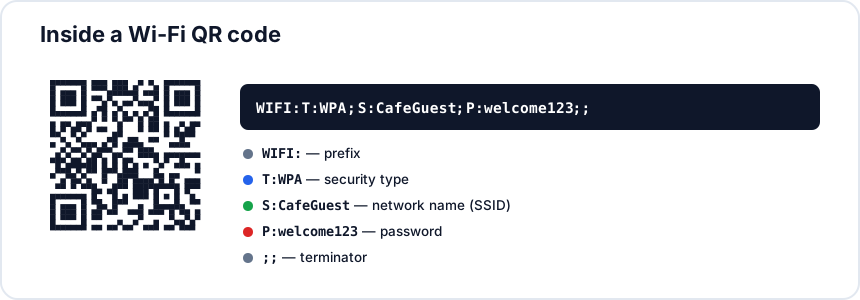
Behind the scenes, the QR code stores a simple text string in this structure: WIFI:T:WPA;S:YourNetworkName;P:YourPassword;;. The phone parses this string and handles the connection for you. You never need to worry about this format yourself — QRStudio builds it automatically.
Why Use a Wi-Fi QR Code?
Wi-Fi QR codes are useful in more situations than you might expect:
- Restaurants and cafes — Print the code on table tents or menus so customers can get online without asking staff for the password.
- Offices and coworking spaces — Place a framed QR code in the reception area for visitors and contractors.
- Home — Stick one on your fridge or router so houseguests can connect in seconds.
- Events and conferences — Include the code on badges, programs, or signage to keep attendees connected.
- Short-term rentals — Add the QR code to your welcome packet or hang it near the router for Airbnb guests.
In each case, the QR code saves time and removes the awkwardness of dictating a password letter by letter.
Step-by-Step: Create a Wi-Fi QR Code with QRStudio
Follow these steps to generate your Wi-Fi QR code in under a minute:
- Open QRStudio — Head to the QRStudio generator in any browser.
- Select the Wi-Fi tab — You will see input fields specifically designed for Wi-Fi credentials.
- Enter your SSID — This is your network name exactly as it appears on your router. It is case-sensitive, so double-check the spelling.
- Enter your password — Type the Wi-Fi password. If your network is open (no password), leave this field blank.
- Choose your encryption type — In most cases, pick WPA / WPA2 / WPA3 (recommended): this single setting covers every modern home router and is recognised by every recent iPhone and Android. Choose WPA3 only (SAE) if your router is configured for WPA3-Personal exclusively (modern devices only — older phones may fail to scan). WPA2-Enterprise (EAP) is for corporate networks with RADIUS authentication. WEP (legacy) exists only for very old equipment — avoid if you have any choice. None is for open networks with no password.
- Customize your code — Pick colors, adjust the error correction level, and optionally add a logo. Darker foreground on a lighter background works best for scan reliability.
- Download — Export as PNG for quick use or SVG for print materials that need to scale cleanly.
That is all there is to it. Your QR code is ready to print or share digitally.
Best Practices for Wi-Fi QR Codes
A few details make the difference between a QR code that works flawlessly and one that frustrates your visitors:
- Test with multiple phones — Before printing, scan the code with at least two different devices (one iPhone, one Android). This catches SSID typos and encryption mismatches early.
- Use WPA2 or WPA3 encryption — WEP is outdated and insecure. Modern routers should always run WPA2 at a minimum. This also ensures the broadest device compatibility for QR scanning.
- Set the error correction level to High (H) — If you plan to print the code, a higher error correction level means the code will still scan even with minor smudges, folds, or partial damage.
- Keep strong contrast — Dark modules on a light background. Avoid light-colored codes on dark paper, as many phone cameras struggle with inverted contrast.
- Print at a reasonable size — At minimum, print your Wi-Fi QR code at 2 cm (0.8 inches) per side. For wall signage meant to be scanned from a few feet away, go larger — 8 to 10 cm works well.
- Update when you change your password — A QR code is static. If you update your Wi-Fi credentials, you need to generate and print a new code.
Where to Display Your Wi-Fi QR Code
Placement matters. Put the code where people will naturally look when they want to get online:
- On or near the router itself
- At the front desk, reception, or check-in counter
- On table tents, menus, or coasters in hospitality settings
- Inside welcome packets for rental properties
- On a small framed print near the entrance of shared workspaces
Adding a short label like "Scan to connect to Wi-Fi" above or below the code helps people who may not realize what it does. Not everyone is familiar with QR codes for Wi-Fi yet, so a brief call to action goes a long way.
Ready to create your own? QRStudio's Wi-Fi QR code generator is free and works entirely in your browser — no account required, and your password never leaves your device.
Quick FAQ
Does the Wi-Fi password get stored anywhere?
No. QRStudio generates the QR code locally in your browser; the password you type never leaves your device and is not stored in any server log. The password ends up in exactly one place — encoded inside the QR image file you download.
Will an iPhone and an Android both recognise the same Wi-Fi QR code?
Yes. The Wi-Fi QR format is a standard that both iOS (since iOS 11) and Android (since version 10, with some manufacturer apps supporting it earlier) understand natively. The default Camera app on a modern phone of either platform will detect the code and offer to join the network.
Can I generate a code for a hidden SSID?
Yes, by typing the SSID exactly as it is broadcast. Note that hidden networks require the scanning device to know the SSID in advance; the QR code passes it along, but some older phones may still struggle to join a fully hidden network on first attempt. If reliability matters, consider unhiding the SSID and relying on a strong password instead.
What happens if I change my Wi-Fi password later?
The printed code stops working — the new password is not encoded in it. Generate a fresh code with the new password and reprint. This is one reason to use a stable, memorable password and reserve the QR code for guest networks where the password changes rarely, if at all.