Paid “dynamic QR” services love to sell you a monthly subscription for one headline feature: seeing how many people scanned your code. It feels essential — and it's genuinely useful — but for most people it's also something you can do for free with tools you probably already have. Here's how to track QR scans without a subscription, exactly what you get, and the one thing the paid version still does that this doesn't.
What you're actually paying for
A dynamic QR code bundles two things: redirection (the code points at a short URL the service controls, which they can re-point later) and analytics (they count each redirect and show you scans over time). The redirection is what lets you change a printed code's destination without reprinting. But most people who sign up aren't re-pointing codes — they just want the scan counts. And the counts you can reproduce yourself, for nothing.
The free method: UTM tags + your own analytics
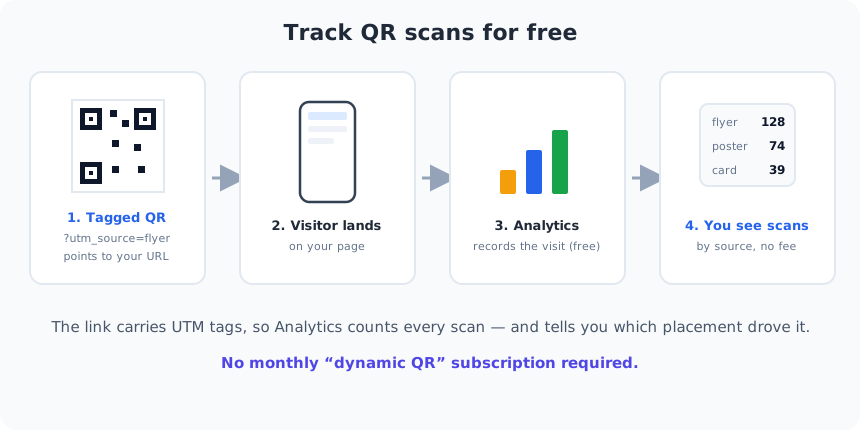
The trick is to make the destination URL tell you where the visitor came from, using UTM parameters — a small, standard set of tags you add to the end of a link. Analytics tools read them automatically. A tagged link looks like this:
https://yoursite.com/offer?utm_source=flyer&utm_medium=qr&utm_campaign=spring
Point a plain static QR code at that tagged URL, and every scan that opens the page is recorded by your analytics with its source (flyer), medium (qr) and campaign (spring) attached — no third party, no fee.
Step by step
- Make sure your site has free analytics. Google Analytics 4 is the usual choice and costs nothing; a privacy-friendly alternative like a self-hosted or free-tier analytics tool works the same way.
- Build your tagged URL. Take the page you want people to land on and add
?utm_source=…&utm_medium=qr&utm_campaign=…. Use a memorableutm_sourcefor each placement (e.g.flyer,poster,window). - Generate a static QR code for that full tagged URL with QRStudio, then download and print it.
- Read the results. In Google Analytics, open Reports → Acquisition → Traffic acquisition (or the campaigns view) and you'll see sessions grouped by your UTM source and campaign — those are your scans.
Compare placements with different tags
This is where the free method quietly beats a basic paid plan. Give each placement its own utm_source — a code on the flyer, a different one on the shop window, another on the business card — and your analytics will tell you exactly which placement earned the scans. You learn not just how many people scanned, but where your codes are actually working, so you can put more effort where it pays off.
What you can and can't do this way
You can count scans, break them down by placement and campaign, and — because it's real web analytics — see device, rough location, and what people did after landing. That's often more insight than a simple dynamic-QR dashboard gives.
You can't change the destination of a printed code later — that one feature is the real reason to pay for a dynamic code, so if you genuinely expect to re-point already-printed codes, keep paying. And a scan only counts if the page loads, so a scan abandoned before the page opens won't register; in practice that's a tiny fraction. For the difference between the two code types, see our guide to static vs. dynamic QR codes.
A word on privacy
Because you're using your own analytics, be transparent about it: cover the tracking in your privacy policy and honour cookie-consent rules where they apply. Encoding the link on a domain you control also keeps your audience safer — they can see a familiar address before they tap, which is exactly the habit that defeats the scams in our QR security guide. Weighing this against NFC and short links? Our comparison guide puts the options side by side.
Common UTM mistakes to avoid
The method is simple, but a few small slips quietly break your reports. Keep your tags consistent: analytics treats Flyer, flyer and flyer (with a stray space) as three different sources, so pick a lower-case, no-spaces convention and use it on every code. Don't invent your own parameter names — only utm_source, utm_medium and utm_campaign (plus the optional utm_term and utm_content) are read automatically. Make sure the tags come after a single ?, joined by &, and test the finished link in a browser before you turn it into a code.
One more: always point the code at a page that actually exists and loads fast on mobile. A tagged URL that 404s or crawls to load costs you both the scan and the data. Print one, scan it, and confirm the visit shows up in your analytics before you print a thousand.